Cyber attacks on schools and businesses are now so common that it's best to plan for when one happens, not if. MFA is one of the simplest ways to protect every account you use. We recommend the free Microsoft Authenticator app, which works on iPhone and Android.
Step one
Get the Microsoft Authenticator app
On your phone, tap the link for your type of phone, or scan the QR code with your camera.
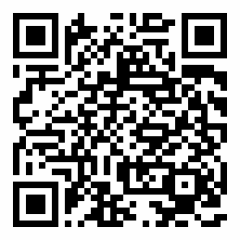
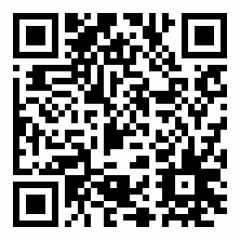
Step by step
Setting up MFA on your account
You'll need your computer and your phone. Keep the setup page open on your computer while you work through these steps on your phone.
1. Install the app
On the Start by getting the app page, choose Download now, install Microsoft Authenticator on your phone, then choose Next. (Using a different app? Choose I want to use a different authenticator app.)
2. Leave the computer page open
Stay on the Set up your account page on your computer while you set up the app on your phone.
3. Add your account to the app
Open Authenticator and allow notifications if asked. Tap + (Add account) at the top right, then choose Work or school account. You can add as many accounts as you need.
4. Go back to your computer
On the Set up your account page, choose Next. A QR code will appear on the screen.
5. Scan the code
Use the app on your phone to scan the QR code on your computer screen. This links the app to your account.
6. Test it
Choose Next on your computer. A notification will pop up in the app: approve it, then choose Next again. That's it: the app is now how you'll confirm it's you when you sign in.
Prefer to watch? Microsoft's setup video walks through the same steps.
Good to know
If something doesn't go to plan
The app asks to use your camera
The first time you add an account, your phone may ask whether Authenticator can use the camera. Choose Allow so it can scan the QR code. If you don't, you'll have to type the details in by hand instead.
The QR code won't scan
Choose Can't scan the QR code? on your computer. It will show a code and a web address you can type into the app instead.
Lots of prompts on site
Depending on how your organisation is set up, you might not be asked for MFA when you're in school or the office. If you're being asked again and again while on site, let us know.
A prompt you didn't expect
If the app asks you to approve a sign-in that wasn't you, don't approve it. Deny it and tell us straight away: it means someone else may have your password.